
If you've ever found yourself asking, why is my website so slow?, you're in good company. More often than not, the answer boils down to just a few usual suspects: bloated, unoptimized images, clunky, inefficient code, or a subpar web hosting plan that just can't keep up. These issues force your visitors to wait, and online, every single second counts against you.
The True Cost of a Slow Website
Staring at a loading bar is more than just a minor hiccup; it’s a silent business killer. A slow website is a digital roadblock, turning eager visitors away before they even get a chance to see what you have to offer.
Imagine a busy coffee shop with just one barista moving in slow motion. The line grows, people get frustrated, and eventually, they'll just walk out and go next door. Your website is no different. When potential customers arrive, they expect a quick, smooth experience. If your pages lag or images take forever to appear, their patience wears thin almost instantly. That initial friction is often the first and last impression they’ll ever have of your brand.
How Speed Impacts Your Bottom Line
A sluggish site directly torpedoes your ability to attract and keep customers. The consequences are real, measurable, and they show up in the metrics that matter most to your business.
- Skyrocketing Bounce Rates: Visitors who hit a delay are quick to leave. That quick departure, known as a "bounce," is a major red flag for search engines, signaling that your site isn't delivering a good user experience. Our guide on how to reduce your website bounce rate offers deeper insights into keeping visitors engaged.
- Plummeting Conversion Rates: Every extra second of load time crushes the odds of a sale, a signup, or a contact form submission. A fast site removes friction, making it dead simple for people to take the action you want them to.
- Damaged SEO Rankings: Google is obsessed with user experience, and speed is a massive ranking factor. A slow site will consistently get outranked by faster competitors, making it that much harder for new customers to find you in the first place.
The data on user impatience is crystal clear. As a page's load time climbs from a mere 1 second to 3 seconds, the probability of a visitor bouncing shoots up by 32%. It gets much worse from there, jumping to a 90% increase in bounce rate when the load time hits 5 seconds.
With 53% of mobile users abandoning a site that takes longer than three seconds to load, speed isn't just a nice feature; it's a fundamental requirement. You can explore more of these user behavior patterns over at BrowserStack.com.
A slow website is like having a "Closed" sign on your digital front door. It doesn't matter how great your products or services are if no one is willing to wait long enough to see them.
Before we dive into the fixes, let's get a quick snapshot of the most common problems you're likely to encounter.
Common Website Speed Killers at a Glance
This table gives you a quick summary of the usual suspects behind a slow website, what they impact the most, and a rough idea of how hard they are to fix.
| Problem Area | Primary Impact | Fix Difficulty |
|---|---|---|
| Poor Web Hosting | Slow server response times (TTFB) | Moderate |
| Large, Unoptimized Images | Long page load and render times | Easy |
| Inefficient Code | Slow processing, render-blocking | Hard |
| Too Many Plugins/Apps | Code bloat, excessive HTTP requests | Moderate |
| No Caching | Forces server to rebuild pages | Easy |
| No Content Delivery Network (CDN) | High latency for distant users | Easy |
Understanding these culprits is the first step. Diagnosing why your website is slow is the critical starting point for fixing a major flaw in your online strategy. The next sections will give you the tools and know-how to pinpoint the exact causes and implement solutions that last.
How to Accurately Diagnose Your Website Speed
Before you can fix what’s slow, you have to know exactly what’s broken. Just guessing why your website feels sluggish can send you down a rabbit hole of wasted time and changes that don’t actually help. The first real step toward a faster site is moving beyond that simple "it feels slow" feeling and into data-driven analysis.
Think of yourself as a detective arriving at a crime scene. You need hard evidence, not just hunches. Luckily, a few free and powerful tools can act as your magnifying glass, helping you uncover the specific elements holding your website back. These tools turn the vague complaint of "slowness" into a precise, actionable diagnosis.
Starting Your Investigation with PageSpeed Insights
Your first stop should always be Google PageSpeed Insights (PSI). Why? Because it tells you exactly what Google sees. PSI analyzes your site’s performance on both mobile and desktop, then gives you a score from 0 to 100 based on a mix of lab tests and real-world user data.
Just pop in your website’s URL and hit "Analyze." The tool spits out a comprehensive report that scores your site on key metrics and, more importantly, gives you a prioritized list of fixes. Don't get discouraged if your initial score is low; just think of it as a clear roadmap for what to tackle first.
The big takeaway here is that Google separates scores for Mobile and Desktop, and it almost always highlights that mobile performance is the bigger, more urgent challenge to solve.
Within that report, you need to zoom in on the Core Web Vitals, because these are direct ranking factors for Google.
- Largest Contentful Paint (LCP): This measures how long it takes for the biggest thing on the screen—usually an image or a large block of text—to become visible. A slow LCP is almost always caused by huge image files or a slow server.
- Interaction to Next Paint (INP): This one is all about responsiveness. It measures how quickly your page reacts when someone clicks, taps, or types.
- Cumulative Layout Shift (CLS): This tracks visual stability. It penalizes your site for elements that jump around while the page is loading, which is a huge source of user frustration.
These metrics give you a precise vocabulary to understand why your site feels slow, moving you from guesswork into concrete problem-solving. For a deeper look into these numbers, our guide to website performance benchmarking can help you set realistic goals for improvement.
Decoding the Waterfall Chart with GTmetrix
While PSI is fantastic for a high-level diagnosis, a tool like GTmetrix gives you a much more granular view with its waterfall chart. This chart is a visual, cascading timeline of every single file your browser has to load to render your page—from images and fonts to CSS and JavaScript files.
Think of the waterfall chart as a detailed receipt for your website's load time. It lists every single item (asset), its "price" (file size), and how long it took to "check out" (download).
Each bar in the chart represents a different request made by the browser. A long bar is an immediate red flag, signaling a file that’s taking way too long to load and making it a prime suspect in your speed investigation. This visual approach helps you pinpoint the exact culprits.
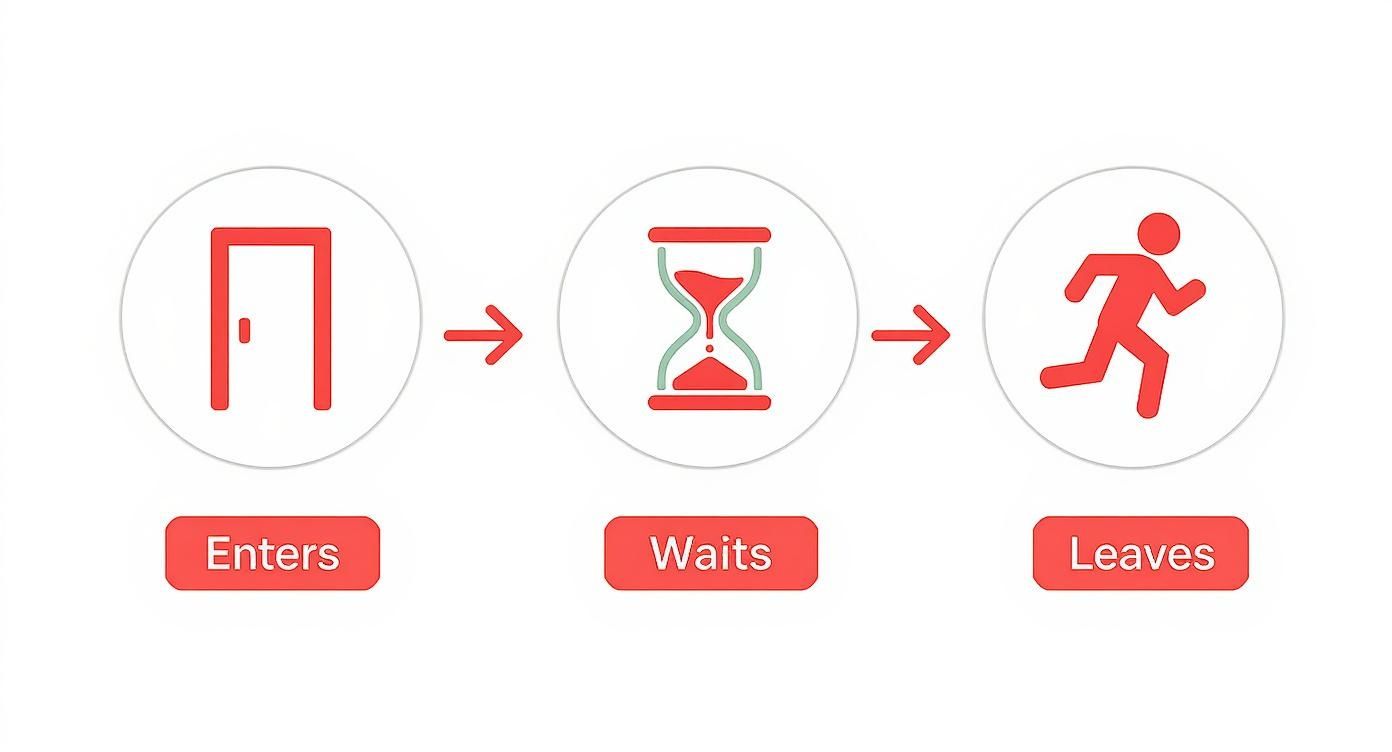
The diagram makes it crystal clear: that "waiting" phase is the critical friction point where you lose people.
By analyzing the waterfall, you can easily spot common issues like oversized images, slow third-party scripts (like tracking pixels or chat widgets), or render-blocking resources that pause everything else from loading. When you combine the "what" from PageSpeed Insights with the "why" from a GTmetrix waterfall chart, you have everything you need to start making targeted, effective fixes.
1. Fixing Your Foundation: Your Hosting and Server
Think of your website's hosting as the plot of land you build your business on. If you decide to build a beautiful, high-tech office on a swampy, unstable foundation, it doesn't matter how great the architecture is—the whole thing is going to sink. It's the exact same with your website. You can have the most perfectly optimized site in the world, but it will still feel sluggish if it's running on a slow, overburdened server.
Your server is the engine that powers everything. When someone types in your URL, their browser shoots a request over to your server, which then has to find all the pieces and send them back. If that initial "handshake" is slow, everything else that follows is delayed, creating a terrible user experience from the very first second.
The Problem with Cheap Shared Hosting
For a lot of new businesses, cheap shared hosting seems like a no-brainer. But that word "shared" is the key. You're sharing server resources—like processing power (CPU) and memory (RAM)—with dozens or even hundreds of other websites.
It's like living in a big apartment building with paper-thin walls. If your neighbor decides to throw a massive party at 2 a.m., you're going to feel it. On a shared server, we call these "noisy neighbors"—other websites on the same server that suddenly get a huge spike in traffic or are running clunky, inefficient code. They hog all the resources, leaving your website with the scraps and causing it to slow to a crawl.
The single biggest performance gain you can often make is upgrading your hosting. No amount of on-site optimization can fully compensate for a slow server foundation. Fixing your hosting can immediately improve every single aspect of your site's speed.
Upgrading from a crowded shared plan to something more robust, like a Virtual Private Server (VPS) or managed hosting, gives your website its own dedicated slice of resources. This is like moving out of that noisy apartment and into your own house. Your site's performance is no longer at the mercy of others. To make the best decision for your business needs, check out our detailed guide on how to choose the right web hosting.
Is It Time to Upgrade Your Hosting Plan?
So, how can you tell if your hosting is the real bottleneck? There are a few dead giveaways.
-
High Time to First Byte (TTFB): This metric, which you can find in tools like PageSpeed Insights, measures how long it takes for your server to send back the very first piece of data. A high TTFB—generally anything over 600 milliseconds—is a direct indictment of a slow server.
-
Frequent Downtime or Errors: If your site often throws 500-level server errors or just goes offline during periods of even moderate traffic, it’s a clear sign your hosting can't keep up with the demand.
-
Slow Backend Performance: Does your WordPress dashboard or Shopify admin panel feel like it’s wading through molasses? This is a huge red flag. If the server is struggling with basic administrative tasks, it’s definitely going to struggle to serve pages to your visitors quickly.
If you’re nodding along to any of these, it’s a clear signal that your website's foundation is cracked. Moving to a better provider isn't just a minor tweak; it's a fundamental fix that gets to the root cause of why your website is slow and sets you up for long-term success.
2. Tackling the Biggest Offender: Unoptimized Media
If your website feels like it’s wading through digital mud, the number one suspect is almost always your media files. Large, uncompressed images and videos are the digital equivalent of trying to mail a grand piano—it’s slow, expensive, and completely unnecessary. These huge files are the single biggest contributor to page bloat, forcing visitors to sit and wait as their browser struggles to download every last megabyte.
Every high-resolution photo straight from your camera or phone is packed with way more data than a website needs. When you upload these files directly without any prep work, you’re creating a massive speed bump that every single visitor has to crawl over. The good news? Fixing this is one of the easiest and most impactful changes you can make.

Choosing the Right Image Format
The first step in taming your media is understanding that not all image formats are created equal. Using the right format for the right job is critical for striking that perfect balance between visual quality and a tiny file size—the very heart of web optimization.
Different image formats are designed for different jobs. Picking the right one is a crucial first step that directly impacts your site's load time. Here’s a quick rundown of the most common formats and what they're best for.
Image Format Comparison for Web Performance
| Format | Best For | Key Feature | Performance Impact |
|---|---|---|---|
| JPEG | Photographs and complex, colorful images. | Uses "lossy" compression to create small file sizes. | Excellent. Offers a great balance of quality and size for most photographic needs. |
| PNG | Logos, icons, and graphics needing transparency. | Uses "lossless" compression, preserving all data. | Can be very heavy. Overusing PNGs for photos is a common performance mistake. |
| WebP | A modern replacement for both JPEGs and PNGs. | Offers superior compression (25-34% smaller). | The best choice for performance. Supported by all modern browsers. |
Choosing the correct format is a foundational step. Using a PNG for a large hero photograph when a WebP or JPEG would do is a common mistake that adds unnecessary weight to your page and is a key reason why your website is slow.
Master Three Core Optimization Techniques
Beyond just the file type, a three-pronged approach to image optimization will solve the vast majority of your media-related speed issues. These techniques should become a non-negotiable part of your workflow every single time you add a new image to your website.
- Resize Images Before Uploading: Never upload an image that is physically larger than it needs to be. If your blog’s content area is only 800 pixels wide, there is absolutely no reason to upload a 4,000-pixel-wide photo. Resize it to the correct dimensions first using any basic photo editor.
- Compress Every Image: After resizing, you must compress the image to shrink its file size. Free online tools like TinyPNG are incredibly effective, stripping out unnecessary data without visibly harming the image’s quality. For a deeper dive, our complete guide on how to optimize images for the web provides more advanced strategies.
- Implement Lazy Loading: This clever technique tells the browser to only load the images that are currently visible on the screen. As the user scrolls down the page, images just outside the viewport are loaded on demand. This dramatically speeds up the initial page load since the browser isn't trying to download everything at once.
Putting Compression into Practice
Tools like TinyPNG make optimization incredibly simple. All you have to do is drag and drop your files, and the tool does all the hard work for you.
The key takeaway here is the massive file size reduction you can achieve—often over 70%—with just a few clicks. This simple, free step can turn a multi-megabyte image into a lightweight file that loads almost instantly for your visitors, making a huge difference in their experience.
3. Streamlining Your Code and External Scripts
Every plugin, app, and third-party script you add to your website is like packing another suitcase for a trip. One or two might be fine, but pretty soon, you’re trying to haul a mountain of luggage, and everything grinds to a halt. In website terms, this "luggage" is code, and too much of it creates a digital traffic jam that is a primary reason why your website is slow.
This code bloat forces a visitor's browser to download, parse, and execute countless files before your page can fully appear. Many of these files, especially from clunky plugins or external marketing scripts, can actually block the main content from rendering, leaving your visitors staring at a blank white screen. Trimming down your code is all about making your website lean and efficient, ensuring visitors see what they came for almost instantly.

Conduct a Ruthless Plugin and App Audit
The first step in decluttering is to take a hard, honest look at your plugins (for WordPress) or apps (for Shopify). Over time, it's dangerously easy to pile up add-ons that seemed useful once but now just sit there, serving a minor function that isn't worth the performance hit. Each one adds its own scripts and styles, piling on to the slowdown.
It's time for an audit. Go through your list of installed plugins or apps and ask yourself three critical questions for each one:
- Is this absolutely essential? Does it provide a core function that your business can't operate without?
- Is there a lighter alternative? Can a different, more modern plugin do the same thing with less of a performance drag?
- Can this be done manually? For instance, instead of a plugin to add your Google Analytics script, can you just add the code snippet directly into your theme files?
Deactivate anything that doesn't pass this test. But don't just leave them deactivated—completely delete them. Even inactive plugins can leave behind database junk and create potential security holes.
Minify and Combine Your Code Files
Once you’ve trimmed the fat, the next step is to make the code you do need as small and efficient as possible. This is where minification comes in. Think of it like freeze-drying your code: it removes all the unnecessary characters—like spaces, comments, and line breaks—without changing how the code actually works. The result is a much smaller file that downloads way faster.
Minification can often slash CSS and JavaScript file sizes by 30-50% or more. This seemingly small optimization has a huge compounding effect, since these files load on nearly every single page of your site.
Beyond minification, you can also combine multiple CSS or JavaScript files into one. Each individual file requires a separate request from the browser to your server. By bundling them, you reduce the total number of these back-and-forth requests, which is a massive win for speed. Most good caching plugins offer features to handle both minification and file combination with just a few clicks. For WordPress users, our guide on how to speed up a WordPress site offers specific plugin recommendations for this.
Defer Non-Essential JavaScript
Here's a simple truth: not all code needs to load right away. Many scripts, like the ones for social media sharing buttons, live chat widgets, or analytics tracking, aren't needed for the initial view of your page. But by default, they often load right alongside critical content, holding up the whole show until they're finished.
This is what we call render-blocking JavaScript. You can solve this problem by deferring these non-essential scripts. Deferring simply tells the browser, "Go ahead and load the important visual stuff first, and you can get to this script later." This simple change lets the visible part of your page load almost instantly, which dramatically improves the perceived performance for your visitors. Again, performance optimization plugins can typically handle this for you, letting you pick and choose which scripts should be deferred.
When to Partner with Website Performance Experts
You've done everything you can think of. You compressed the images, audited your plugins, and even upgraded your hosting. And yet, your site still feels sluggish.
While DIY fixes can get you pretty far, sometimes you just hit a wall. When that happens, it’s usually because the problem isn’t a simple tweak—it’s a sign of a deeper issue that requires specialized expertise. Knowing when to call in a professional isn’t admitting defeat; it’s making a smart, strategic investment in your website’s long-term health and your business’s growth.
Moving Beyond the Basic Fixes
If you find yourself stuck after tackling the low-hanging fruit, it’s often because the remaining issues don't have a simple plugin-based solution. These are the kinds of challenges where an expert can make a massive difference in a short amount of time.
- Deep Database Optimization: Over the years, your database gets clogged with old post revisions, orphaned data, and inefficient queries that slow everything down. A pro can get under the hood to clean and index your database tables, which can drastically speed up how quickly your site retrieves information.
- Resolving Render-Blocking Resources: Sometimes, a critical CSS or JavaScript file stubbornly resists being deferred, forcing visitors to wait for it to load. Experts can manually rewrite code or reconfigure how those assets are delivered to make sure your page renders instantly.
- Advanced CDN and Caching Setups: Just turning on a Content Delivery Network or a server-side cache is one thing. A specialist can fine-tune all the settings for peak performance, tailoring them to your specific audience and server environment for the best possible results.
This level of professional optimization aims for world-class speed. For instance, while the average mobile page load time in the US is 1.9 seconds and desktops load at 1.7 seconds, those numbers can vary wildly around the globe. An expert makes sure your site is lightning-fast for every visitor, no matter where they are. You can discover more insights about these global speed benchmarks at DebugBear.com.
The Value of a Local Kansas City Partner
Choosing a local Kansas City agency like Website Services-Kansas City gives you more than just technical skill; it offers a genuine partnership. A local team understands the market you're operating in and can provide tailored strategies that actually align with your business goals.
This screenshot from a fellow Kansas City agency shows a clean, fast-loading design, which is the standard local experts strive to deliver. By focusing on performance from the ground up, a professional partner ensures your site isn’t just functional—it’s a powerful tool for turning visitors into loyal customers.
Frequently Asked Questions About Website Speed
Even with a solid plan, questions always pop up when you start digging into website performance. Answering the big "why is my website slow" question often just leads to more specific concerns about tools, maintenance, and what really moves the needle. Let's clear up some of the most common questions we hear all the time.
How Often Should I Check My Website Speed
As a baseline, you should check your website speed at least monthly. This helps you establish a consistent performance benchmark.
More importantly, you need to test your speed immediately after making any significant changes. That means running a test right after installing a new plugin, updating your theme, or adding a big batch of new content or images.
For e-commerce sites, especially those in a competitive market like Kansas City, I’d bump that up to weekly checks during your busy seasons, like the holidays. Automated monitoring tools can also be a real lifesaver here; they'll ping you if performance suddenly drops, so you can fix issues before they start costing you customers.
Does a CDN Really Help a Local Business Website
Yes, absolutely. A Content Delivery Network (CDN) is famous for helping massive global sites deliver content quickly across the world, but it offers some serious perks for local businesses, too. The key is to think of it less as a tool for bridging distance and more as a way to take the strain off your main server.
By having the CDN handle all your static assets—like images, CSS, and JavaScript files—you free up your primary hosting resources. This means your server can respond much faster to those crucial initial requests from your local visitors. A CDN also acts as a great buffer against sudden traffic spikes, keeping your site fast and responsive even if a local promotion goes viral.
A CDN isn't just about global reach; it's about local resilience. It strengthens your core server by handling the heavy lifting of asset delivery, ensuring a consistently fast experience for every user, near or far.
Will Deleting Unused Plugins Make My Site Faster
Definitely. This is one of the most critical and overlooked maintenance tasks out there. Even plugins that are just deactivated can leave behind stray files and—more importantly—clutter up your database with old entries. This digital junk, often called "bloat," forces your server to wade through more data than it needs to, slowing down your entire website.
Properly removing unused plugins does more than just speed things up. It also makes your website backups smaller and faster to restore. Crucially, it closes potential security holes, since outdated and abandoned plugin code is a favorite target for hackers. Regular cleanups are just plain essential for a healthy, fast, and secure website.
Are you tired of guessing why your site is slow? Let the experts at Website Services-Kansas City provide a comprehensive performance audit and deliver the speed your business deserves. Get your free consultation today!
