
At its simplest, creating a robots.txt file is just a matter of making a basic text file, giving it the name robots.txt, and dropping it into your website’s main folder. Inside, you use commands like User-agent to name a specific bot and Disallow to block it from certain pages, giving you direct control over what search engine crawlers can see.
The Strategic Role of a Robots.txt File in SEO

Before you write a single line, it’s crucial to see your robots.txt file as more than just a technical chore. This simple file is a powerful strategic tool for SEO. Think of it as your website’s digital bouncer—it guides friendly search engine bots toward your best content while politely keeping them out of areas that aren't ready for the public, like private folders or pages with thin content.
Properly configured, this file is your first line of defense and communication with crawlers. It plays a few critical roles in any well-rounded SEO strategy by telling bots where they can and cannot go, helping them focus their limited time on your most important pages.
Managing Crawl Budget and Server Resources
Every website gets a "crawl budget," which is basically the number of pages a search engine is willing to crawl on your site within a certain timeframe. A smart robots.txt file helps you manage this budget like a pro.
By blocking unimportant pages—like internal search results, admin login areas, or simple thank-you pages—you make sure that bots spend their time indexing your high-value content. This also keeps your server from getting overloaded. When too many bots crawl your site at once, it can strain resources and slow things down for your actual human visitors. A robots.txt file helps manage this crawler traffic, ensuring a smoother experience for everyone.
If you're wondering why your site isn't ranking, inefficient crawling could be a piece of the puzzle. You can learn more about this by exploring our guide on what to do if your website is not showing up on Google search.
Your robots.txt file is the foundation of technical SEO. It tells search engines how to interact with your site, preserving crawl budget for the pages that truly matter and protecting sensitive areas from public view.
Protecting Content in the Age of AI
The role of robots.txt has grown significantly with the rise of AI. Many site owners now use it to keep AI models from scraping their content for training data without permission.
A 2023 report revealed that 306 of the top 1,000 websites were already blocking OpenAI’s GPTBot. This highlights a major trend: using this simple text file to protect intellectual property from being vacuumed up by AI companies. You can read more about the history and modern uses of the Robots Exclusion Protocol on Wikipedia.
Understanding the Language of Robots.txt Directives
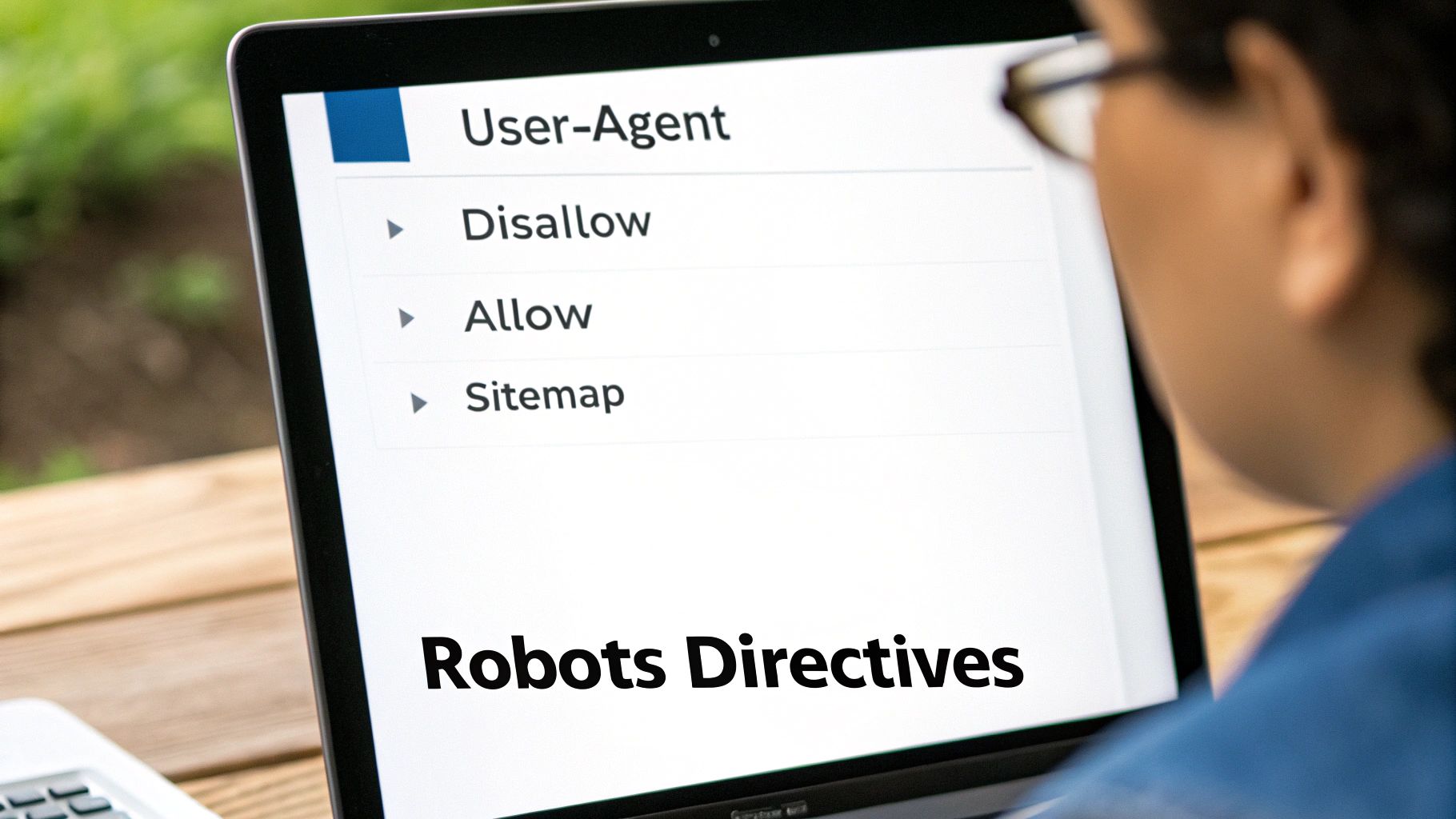
To get your robots.txt file working, you need to speak the simple language that web crawlers understand. This language is made up of commands called directives. Each one is a specific instruction, telling search engine bots exactly how to behave on your site.
Think of it like setting house rules for visitors. You first identify who the visitor is (User-agent), then you tell them which rooms are off-limits (Disallow) and which ones they're free to enter (Allow). Nailing these basic commands is the foundation of any solid technical SEO strategy.
To give you a quick reference, here are the most common directives you'll be working with.
Essential Robots Txt Directives Explained
This table breaks down the core commands used in a robots.txt file and what they instruct web crawlers to do. It’s a handy cheat sheet for the basics.
| Directive | Function | Example Usage |
|---|---|---|
| User-agent | Specifies which web crawler the rules apply to. | User-agent: Googlebot |
| Disallow | Tells a crawler not to access a specific file or directory. | Disallow: /admin/ |
| Allow | Creates an exception to a Disallow rule, permitting access. |
Allow: /media/public/ |
| Sitemap | Points crawlers to the location of your XML sitemap. | Sitemap: https://your.site/sitemap.xml |
Getting these four directives right will handle about 99% of what most websites need. Let's dig into how they work in the real world.
Identifying the Crawler with User-agent
The first line in any set of rules is always User-agent. This command points to the specific web crawler you're giving instructions to. Every bot, from Google’s Googlebot to Bing’s Bingbot, has its own unique User-agent name.
You can get specific by targeting one bot, like User-agent: Googlebot. More often than not, though, you'll use a wildcard character (*) to apply your rules to all crawlers, like this: User-agent: *. This is the standard approach unless you have a good reason to treat certain bots differently.
Setting Boundaries with Disallow and Allow
This is where you draw the lines. The Disallow directive tells bots which files or directories they should stay out of. It’s perfect for blocking things like admin pages, internal search results, or thank-you pages that offer zero SEO value.
For example, Disallow: /admin/ tells all bots to stay away from anything inside your /admin/ folder. A single typo here can have disastrous consequences, so precision is everything.
The Allow directive is your way of making an exception to a Disallow rule, which is incredibly useful for more granular control. For instance, you might want to block an entire directory of private images but specifically allow one public photo that's critical for a page.
A powerful combination is blocking a whole folder but permitting a single file inside it. This gives you surgical control over what gets crawled, which is vital for managing duplicate content or protecting specific assets.
This level of control over crawling is just one piece of the technical SEO puzzle. To manage what gets indexed, you'll also want to understand what a canonical URL is and how it tells search engines which version of a page is the master copy.
Creating Specific Crawling Rules
Let's look at a practical example. Say you have a WordPress site and you want to block crawlers from your plugin folders but need them to access one critical JavaScript file inside.
Your rules might look like this:
User-agent: *
Disallow: /wp-content/plugins/
Allow: /wp-content/plugins/some-plugin/important-script.js
This tells all bots to keep out of the /plugins/ directory but makes an explicit exception for important-script.js. Just be aware that while Google respects this level of detail, not all crawlers do.
Pointing Bots to Your Sitemap
Finally, the Sitemap directive is a simple but powerful way to help crawlers discover all your important URLs. By including the full URL of your XML sitemap, you're essentially handing them a roadmap of your entire site.
Example: Sitemap: https://www.yourwebsite.com/sitemap.xml
While Google is pretty good at finding sitemaps on its own, explicitly adding it to your robots.txt file is a best practice that leaves nothing to chance. It’s a quick win.
Building Your First Robots.txt File from Scratch
Alright, enough theory. Let's get our hands dirty and actually build a robots.txt file. The process is a lot less intimidating than it sounds—it all starts with a completely blank text document. We'll walk through a few common examples line by line, so you can see exactly what each command does.
Interestingly, the whole protocol dates back to 1994. It was created by Martijn Koster to stop a rogue web crawler from overwhelming his servers in what was essentially an accidental denial-of-service attack. This led to the Robots Exclusion Protocol, a simple standard that became the bedrock for managing how bots interact with websites. You can find more details on the history of this protocol on cognitiveseo.com.
The Basic "Allow All" Template
If you're launching a new blog or a simple business site, your goal is usually straightforward: you want every search engine to crawl everything. In this scenario, your robots.txt file can be incredibly simple.
This is the most common and welcoming setup for new websites. It's a clear signal to all bots that nothing is off-limits.
User-agent: *
Disallow:
See how the Disallow: line is blank? That’s not a typo. It literally means "disallow nothing," giving crawlers a green light to access your entire site.
Template for a Standard WordPress Site
WordPress sites are a bit different. They have specific folders you definitely don't want indexed, like the admin dashboard (/wp-admin/) and other core files. A good starting point for any WordPress site will give crawlers more specific instructions.
This configuration blocks the admin area but makes one crucial exception: it specifically allows bots to access admin-ajax.php. This file is often used by themes and plugins to power dynamic features, so blocking it can sometimes cause issues.
User-agent: *
Disallow: /wp-admin/
Allow: /wp-admin/admin-ajax.php
Finally, you should always point search engines to your sitemap. It's a simple addition that helps them discover all of your important content much more efficiently. If you don't have one yet, be sure to check out our complete guide on how to create an XML sitemap.
Adding a sitemap directive to your robots.txt is like giving search engines a treasure map to your best content. It’s a simple line that ensures crawlers can find every page you want indexed.
Your final file for a WordPress site would look like this:
User-agent: *
Disallow: /wp-admin/
Allow: /wp-admin/admin-ajax.php

Sitemap: https://www.yourwebsite.com/sitemap.xml
Advanced Template for E-commerce Sites
E-commerce stores are a whole different beast. They can generate thousands of low-value, duplicate URLs from things like faceted navigation (filters for size, color, price) and internal search results. Letting bots crawl all of those pages is a surefire way to burn through your crawl budget.
Here’s a practical template for an e-commerce site that tackles this head-on:
User-agent: *: This rule applies to every search engine bot.Disallow: /cart/: Blocks the shopping cart page from being indexed.Disallow: /account/: Keeps customer account pages out of search results.Disallow: /*?: This is a powerful one. The wildcard blocks any URL that contains a question mark, which is an effective way to stop most filtered navigation and site search pages from being crawled.
Here is the full snippet you can copy and adapt for your own store.
User-agent: *
Disallow: /cart/
Disallow: /account/
Disallow: /checkout/
Disallow: /*?

Sitemap: https://www.yourstore.com/sitemap.xml
This setup is designed to save your crawl budget for the pages that actually matter—your product and category pages. By blocking all those dynamically generated URLs, you guide Googlebot toward the content that drives traffic and makes you money.
How to Get Your Robots.txt File Live On Your Website
You’ve spent the time crafting the perfect robots.txt file, but it’s completely useless until it’s live on your site. The next step is getting it into the right place, and where that "right place" is depends entirely on how your website is built.
There's one universal rule that never changes: your robots.txt file must live in the root directory of your domain. This just means it needs to be accessible at yourwebsite.com/robots.txt. If it's anywhere else, search engine crawlers won't even look for it.
For a simple, hand-coded site built with HTML and CSS, the process is as straightforward as it gets. You’ll use an FTP (File Transfer Protocol) client like FileZilla or your hosting provider's built-in file manager. Just drag and drop your robots.txt file into your site’s main public folder, which is usually called public_html or www.
Uploading to a WordPress Website
For the millions of sites running on WordPress, you have a couple of solid options. The best one for you really just depends on your technical comfort level.
- Use an SEO Plugin: Tools like Rank Math or Yoast SEO make this dead simple. They almost always have a "File Editor" or "robots.txt" section tucked away in their settings. You just paste your rules directly into a text box, hit save, and you’re done. This method is fast, easy, and means you don't have to mess with FTP.
- Do a Manual FTP Upload: If you'd rather have direct control or you don't use a big SEO plugin, the old-school FTP method is your best bet. By uploading the file directly to your root WordPress folder, you ensure that no plugin can accidentally overwrite your settings during an update.
The SEO plugin method is perfect for beginners or anyone who wants a quick, integrated solution. However, uploading via FTP gives you the final say and prevents any potential conflicts with other plugins.
Customizing for Shopify Stores
Shopify handles robots.txt a bit differently than other platforms. You don’t get direct access to the root directory to just upload a file. Instead, Shopify automatically generates a default robots.txt for all stores, and your job is to add your own rules to it.
To do this, you’ll have to edit a special template file.
From your Shopify admin dashboard, go to Online Store > Themes. Find your current theme, click the three-dots icon, and select Edit code. From there, you'll need to create a new template specifically for robots.txt.liquid and add your custom Disallow rules. Shopify will then tack your instructions onto the end of its default file.
Implementation for Static Site Generators
If you’re a developer working with a static site generator like Jekyll or Hugo, or a framework like Next.js, the process is baked right into your workflow.
All you have to do is place the robots.txt file in the static or public folder of your project.
When you deploy your site to a host like Netlify, Vercel, or GitHub Pages, the build process automatically moves the file into the correct root directory of the live site. This is a great setup because it keeps your crawler instructions version-controlled right alongside the rest of your website's code.
Knowing how your files connect to your live server is a fundamental part of web management, much like learning how to connect your domain to your website for the first time.
How to Test Your Robots.txt File (and Avoid SEO Disasters)

A single typo in your robots.txt file can do catastrophic damage. I'm not being dramatic. I've seen it happen. Imagine accidentally adding a forward slash to your Disallow directive—Disallow: /—and wiping your entire website from Google's index overnight.
This isn't some hypothetical scare tactic; it’s a real and surprisingly common mistake. That’s why testing your file before it goes live isn't just a good idea. It's an absolutely critical safety check.
The best tool for the job is Google's own Robots.txt Tester, which is baked right into Google Search Console. It's a free, powerful utility that lets you check for syntax errors and test your rules against any URL on your site. This gives you the peace of mind that your file works exactly as you intend before it can do any real damage. If you're new to the platform, learning how to set up Google Search Console is a foundational step for any site owner.
Using the Google Search Console Tester
The Robots.txt Tester has a simple interface where you can see your live robots.txt file or just paste in a new version to test it out. It immediately highlights any syntax warnings or logic errors it finds, like misplaced characters or rules that conflict with each other.
But the tool’s real power comes from its URL testing feature. You can plug in any URL from your site and see if it would be blocked or allowed based on the rules you've written.
For example, this screenshot from Google's documentation shows a user testing a specific URL against their ruleset to see if Googlebot can crawl it.
The interface gives you a clear "Allowed" or "Blocked" verdict and even highlights the exact line in your file that's making the decision. It takes all the guesswork out of the process.
A Practical Test Scenario
Let's walk through a common situation. Say you want to block your entire /admin/ directory but need to make absolutely sure your main product page at /products/blue-widget remains accessible to crawlers.
Here's how you'd test it:
- Test 1: Enter
yourdomain.com/admin/logininto the tester. The result should show "Blocked" and highlight yourDisallow: /admin/line. Perfect. - Test 2: Now, enter
yourdomain.com/products/blue-widget. The result should show "Allowed," confirming that your block rule isn't accidentally affecting important pages.
This simple two-step validation takes less than a minute but can save you from a major SEO catastrophe. Always test your rules against both a URL you want to block and a key URL you need to keep crawlable before you upload the file. This sanity check ensures your instructions are being interpreted exactly as you intended.
Common Robots.txt Mistakes and How to Avoid Them
Even with the best of intentions, a single misplaced character in your robots.txt file can create some serious SEO headaches. Learning to sidestep these common pitfalls is just as important as knowing what to put in the file in the first place. Honestly, most of these errors come down to simple misunderstandings of syntax or strategy.
One of the most frequent issues is surprisingly basic: the file doesn't even exist. An analysis of one million websites found that a staggering 38.65% of sites were missing a robots.txt file entirely. Of the ones that had one, only 23.16% actually included a sitemap link—a critical best practice. You can read more about these findings from the Intoli analysis. That data shows just how many sites are missing out on fundamental control over how they're crawled.
Misusing Directives for Indexing Control
A major strategic blunder is trying to use Disallow to keep a page from showing up in Google's search results. While the Disallow directive tells Googlebot not to crawl a page, it doesn't guarantee it won't be indexed. If another website happens to link to your "disallowed" page, Google might still index the URL without any content, which just looks unprofessional in the search results.
The
Disallowdirective is a crawl instruction, not an indexing one. If you want to keep a page out of Google's search results, the correct tool is thenoindexmeta tag placed in the page's HTML<head>section.
Getting this distinction right is vital. Use Disallow for things you don't want crawled at all (like admin login pages) and use noindex for pages you want kept out of the public search results.
Blocking Critical CSS and JavaScript Files
Back in the early days of SEO, it was common practice to block crawlers from CSS and JavaScript files to try and save on "crawl budget." Today, that's a disastrous mistake. Google needs to render your pages just like a user's browser does to fully understand your content, layout, and user experience.
Blocking these critical resources can cause a whole host of problems:
- Poor Rendering: Google can't "see" your page as it's meant to be seen, which can lead to it completely misinterpreting your content.
- Mobile-Friendliness Issues: If the CSS that makes your site responsive is blocked, Google will likely fail your site on its mobile-friendly test.
- Lower Rankings: If Google can't properly render your page, it can absolutely have a negative impact on your rankings.
Always make sure your CSS and JS files are crawlable. The easiest way to check is to pop a few of your key pages into Google's URL Inspection tool in Search Console and make sure they can be rendered correctly.
Simple Syntax Errors with Big Consequences
Finally, tiny syntax mistakes can break your entire file. The robots.txt protocol is incredibly literal, so precision really matters.
Here are the most common slip-ups I see all the time:
- Incorrect Casing: All directives like
User-agentandDisalloware case-sensitive. Usinguser-agentordisallow(all lowercase) will make the rule completely ignored by crawlers. - Forgetting the Forward Slash: When you disallow a directory, you absolutely must include the leading slash.
Disallow: adminis wrong; it has to beDisallow: /admin/. - No Wildcards in
Disallow: You can't use wildcards like*inside the path of aDisallowdirective (e.g.,Disallow: /products/*/review/). Google's parser just doesn't support it.
Always, always double-check your syntax. Use the Google Search Console Robots.txt Tester before you deploy your file to catch these little errors before they can do any real damage to your site's visibility.
At Website Services-Kansas City, we specialize in the technical details that drive real SEO results. If you need help creating a flawless robots.txt file or performing a comprehensive SEO audit, we're here to help you grow. Learn more about our expert services.
