
Adding alt text is pretty straightforward. You just need to find the image settings in your website's editor—whether that's the WordPress Media Library or a Shopify product page—and fill in the field labeled "alt text" or "alternative text." It’s a simple action, but one that makes your site more accessible and gives you a nice boost in image search results by telling search engines what your pictures are all about.
Why Alt Text Is Your Untapped SEO Superpower
Before we get into the nuts and bolts of how to add alt text on different platforms, we need to talk about why this little text field packs such a punch. Far too many businesses treat alt text as a minor technical chore, but it’s actually a fundamental part of modern SEO and website accessibility.
Driving Visibility Through Image Search
Let’s be clear: Google Images is a massive search engine in its own right, and optimized alt text is your ticket to getting seen there. When you write a good, descriptive alt tag, you're giving search crawlers the context they need but can't get just from looking at the pixels in an image file.
This helps them understand what your image—and by extension, the whole page—is about, making it much easier for them to rank you for relevant searches.
Think about this: back in 2023, Google shared that image searches make up over 20% of all searches on its platform. That's billions of queries every month where a little bit of descriptive text could rocket your visibility. For a local business in Kansas City, this could mean showing up when a customer searches for "best patio renovation Kansas City" and your high-quality image with optimized alt text appears first. It's a game-changer for driving organic traffic.
Key Takeaway: Think of alt text as a direct line of communication with Google. You're explicitly telling it what's in your image, which removes guesswork and improves your chances of appearing in valuable image search results.
Expanding Your Audience with Accessibility
SEO benefits aside, the primary reason alt text exists is for accessibility. It ensures that the millions of people with visual impairments who use screen readers can understand the content and context of your images. A screen reader simply reads the alt text out loud, painting a picture for someone who can't see it.
This is about so much more than just checking a compliance box; it’s about creating an inclusive and welcoming experience for every single visitor. When you make your site usable for everyone, you expand your potential audience and build goodwill.
On top of that, search engines actively reward sites that provide a better user experience. Alt text is also a critical component for ensuring your site adheres to important standards like ADA website compliance. If you're curious about how this fits into the bigger picture, you can learn more by exploring what is on-page optimization.
Crafting Perfect Alt Text That Ranks and Converts
Writing great alt text is one of those skills that feels like a blend of art and science. The goal is to be descriptive, concise, and smart about your keywords—all without sounding like a robot wrote it. When you get this balance right, you're not just checking a box; you're serving both visually impaired users and search engine crawlers in one clean shot.
Think about this for a second: you have the opportunity to reach the 2.2 billion people worldwide who have some form of vision impairment. That's the audience you unlock with thoughtful alt text. For small businesses and e-commerce shops, ignoring this is leaving a huge chunk of inclusive traffic on the table.
Plus, Google leans heavily on alt text to understand what an image is about. Your own description is far more powerful than Google's AI guesswork, and it can help you compete for a slice of the 20%+ of all searches that happen on Google Images.
Be Specific and Descriptive
Vague alt text is a completely wasted opportunity. Don't just name the object in the photo; describe the context and the action. This creates a much richer experience for users and feeds search engines the specific details they crave.
- Weak:
alt="dog" - Strong:
alt="Golden retriever catching a red frisbee mid-air in a sunny park"
See the difference? The strong example tells a story. It gives you the breed, the action, the object, and the setting, painting a clear mental picture for anyone who can't see the image.
Keep It Concise
While you want to be descriptive, you also need to be brief. Most screen readers will cut off alt text after about 125 characters, so you have to get to the point quickly.
Your primary keyword should feel natural, ideally placed near the start of the description. But the top priority is always accuracy and user experience—never force a keyword where it doesn't belong.
This means you need to front-load the most important details. If you're a Kansas City plumber, an image of your crew at work could be alt="Kansas City plumbing team from Website Services-Kansas City fixing a leaky pipe under a kitchen sink." That's way more effective than a generic description. Understanding how images add meaning to your content is also a key part of good semantic SEO.
Ditch Redundant Phrases
This is a rookie mistake I see all the time: starting alt text with "image of" or "picture of." Don't do it. The HTML <img> tag already tells screen readers and search engines that it's an image. Adding those phrases just wastes precious characters and sounds clunky when read aloud.
- Avoid:
alt="Image of a new Shopify store design on a laptop" - Better:
alt="Custom Shopify store design for a fashion brand displayed on a laptop screen"
The better version is cleaner, more direct, and delivers more context right away. This kind of clear, direct communication is a cornerstone of great website content in general. To learn more, check out our guide on how to write website copy that truly connects with your audience. Stick to these guidelines, and you'll be writing perfect alt text that serves every single visitor.
How to Add Alt Text on Popular Website Platforms
Knowing how to write great alt text is one thing, but knowing where to put it is the next practical step. The good news is that most modern website platforms make this process incredibly straightforward. Whether you're running an e-commerce store or a local business blog, you can add alt text in just a few clicks.
This hands-on guide will walk you through adding alt text on the most common content management systems. We'll cover the specific steps for WordPress, Shopify, and even basic HTML, so you can start making these important updates right away. Each platform handles it a little differently, but the core principle is always the same.
Adding Alt Text in WordPress
WordPress powers a massive portion of the web, and thankfully, it gives you a couple of simple ways to manage alt text. The method you use just depends on whether you're adding a brand-new image or editing one that's already in a post.
Through the Media Library
When you upload a new image to your Media Library, WordPress gives you a perfect opportunity to add alt text right away.
- From your WordPress dashboard, head over to Media > Add New and upload your image.
- Once it's uploaded, click on the image to open the attachment details screen.
- You'll see a field labeled Alternative Text. Just fill that in with your description and you're all set.
This is the best workflow for new images since it ensures alt text is there from the very beginning. And on a related note, since you're already thinking about image optimization, you might find our guide on how to speed up a WordPress site helpful—well-managed images play a huge role in performance.
Within the Block Editor (Gutenberg)
What if an image is already live in a post or page? Easy. You can add or edit its alt text directly from the editor.
- Open the post or page where the image is.
- Click on the image block to select it.
- The block settings sidebar will pop up on the right, and you'll see an "Alt text" field waiting for you.
- Type your description right in there. The changes save automatically.
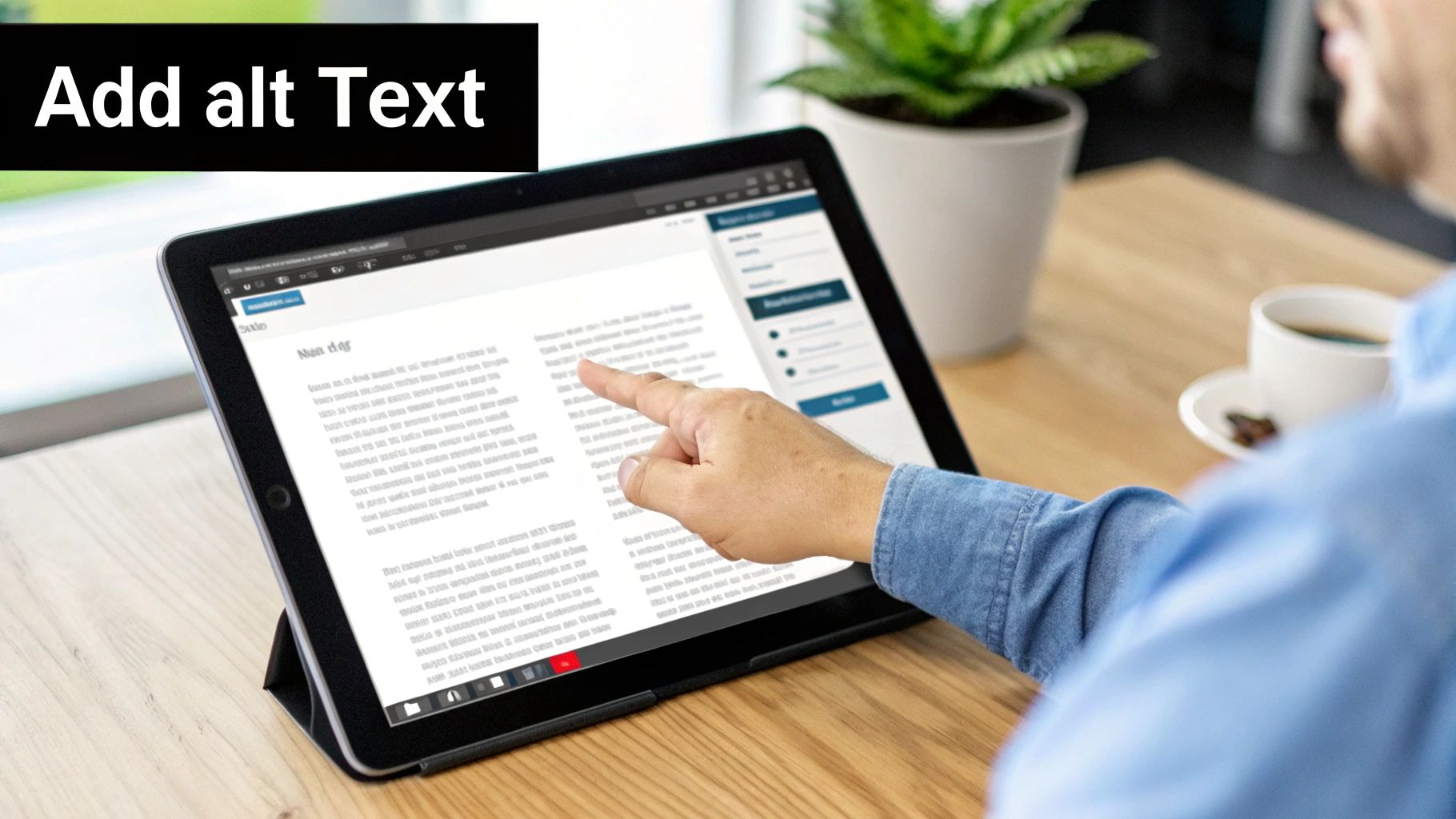
This screenshot shows exactly where to find that field in the WordPress editor. It makes auditing and updating existing content a breeze because you never have to leave your post.
Adding Alt Text in Shopify
For e-commerce stores on Shopify, product images are your most valuable visual assets. Adding descriptive alt text is non-negotiable for both SEO and helping shoppers find your products through Google Images.
Here's how to get it done for a product image:
- From your Shopify admin, go to Products and click on the product you want to edit.
- On the product details page, click on a product image to open the preview.
- Click Add alt text (or Edit alt text if some is already there).
- Enter your descriptive alt text and hit Save alt text.
Pro Tip: For product images, get specific. Include the product name, model number, color, and key features. For example:
alt="Men's Classic T-Shirt in navy blue, model T-101, made from 100% cotton."
Adding Alt Text in Raw HTML
If you're not using a CMS or you just prefer to work directly with code, you can add alt text using the alt attribute right inside the <img> tag. This is the foundational method that all platforms use behind the scenes.
The structure is clean and simple. You just add alt="..." directly into the image tag.
An <img> tag without alt text looks like this:<img src="kc-seo-team.jpg">
To add alt text, you just include the attribute:<img src="kc-seo-team.jpg" alt="Website Services-Kansas City SEO team collaborating in their office">
This approach is universal across the web. No matter what platform or framework you're using, understanding this basic HTML attribute gives you complete control over your image accessibility.
Common Alt Text Mistakes (and How to Fix Them)
Even with the best intentions, it's easy to get alt text wrong when you're first starting out. The good news? Once you know what to look for, these common slip-ups are just as easy to fix. Think of this as your quick troubleshooting guide to help you audit your own site and tighten up your approach.
Getting this right ensures your images are pulling their weight for your SEO and accessibility goals, not working against them. You'd be surprised how many business owners make these mistakes without ever realizing the impact.
Overstuffing with Keywords
One of the most frequent mistakes I see is treating the alt text field like a dumping ground for keywords. This is an old-school tactic called keyword stuffing, and search engines are way too smart for it now. Not only does it create a horrible, clunky experience for anyone using a screen reader, but it can also get you penalized by Google.
- Mistake:
alt="kansas city seo expert seo agency kc marketing services" - Fix:
alt="Kansas City SEO expert from Website Services-Kansas City analyzing a website's performance on a laptop"
The fix is so much better. It's a natural, descriptive sentence that still includes a primary keyword without sounding robotic or forced. It actually describes the scene while adding useful context for search engines.
Being Too Vague or Generic
Another common issue is writing descriptions that are so brief they're basically useless. An alt text of "dog" or "office" doesn't really help anyone. The whole point is to paint a clear mental picture for someone who can't see the image.
Takeaway: Your alt text should be specific enough that a person could describe the image to someone else just by reading your text. Vague descriptions are just missed opportunities for both accessibility and SEO.
For example, instead of just "team photo," take a moment to describe who is in the photo and what they’re doing. That extra bit of detail makes a world of difference.
Forgetting Alt Text on Important Images
Leaving the alt text field blank on an important image is like hanging a blank sign in your storefront window. Any image that conveys real information—a product photo, a chart, a team member's headshot—absolutely must have descriptive alt text. Without it, that image is completely invisible to screen readers and a total mystery to search engines.
A quick audit using a basic SEO tool can instantly show you which images are missing this crucial element. Getting this right is a fundamental part of a solid on-page strategy. You can learn more about how to optimize images for the web in our detailed guide.
Using Alt Text on Decorative Images
On the flip side, not every single image needs a detailed description. Images that are purely for decoration—things like background patterns, stylistic borders, or abstract shapes—should have an empty alt attribute: alt="".
This simple bit of code signals to screen readers that the image is just for looks and can be safely skipped. It prevents auditory clutter and creates a much smoother, less annoying user experience.
How to Audit and Optimize Alt Text at Scale
Manually checking every single image on a website with hundreds or thousands of pages is a recipe for a headache. It's just not going to happen. For a big e-commerce store or a content-heavy blog, you need a smart, scalable strategy to find and fix alt text issues without losing your mind. A systematic audit is really the only way to make sure every image is pulling its weight for your SEO and accessibility.
First things first, you need a bird's-eye view of your site's image health. You can't fix what you can't see.
Use SEO Tools for a Site-Wide Crawl
This is where a powerful SEO tool becomes your best friend. Platforms like Semrush, Ahrefs, or even the built-in Site Audit in Rank Math can crawl your entire website and spit out a report flagging every single image that's missing alt text. These tools do the heavy lifting, consolidating all the errors into one exportable list that saves you countless hours of clicking through pages.
This process gives you a clear, actionable to-do list. From there, you can quickly spot the high-priority pages—like your top-performing blog posts or best-selling product pages—and tackle those first for the biggest immediate impact. If you're new to this, a great place to start is by learning how to set up Google Search Console, which will give you the data you need to guide your audit.
Bring in AI for Speed and Scale
Once you have your hit list of images, the sheer volume can still feel overwhelming. This is a perfect job for AI-powered alt text generators. These tools can analyze your images and generate descriptive drafts in seconds, turning a massive, multi-week project into a manageable task.
But let's be real—AI isn't a perfect, one-click solution. While it’s fantastic for creating a baseline, the descriptions can sometimes lack the nuance, brand voice, or specific keyword focus that only a human can provide. This is why the most effective approach is a hybrid one.
The Hybrid Strategy: Use AI to generate the first draft of alt text for hundreds of images all at once. Then, have a human editor review and refine them. This ensures every description is accurate, on-brand, and fully optimized for your specific SEO targets.
This infographic really drives home the common errors a good audit will help you catch.
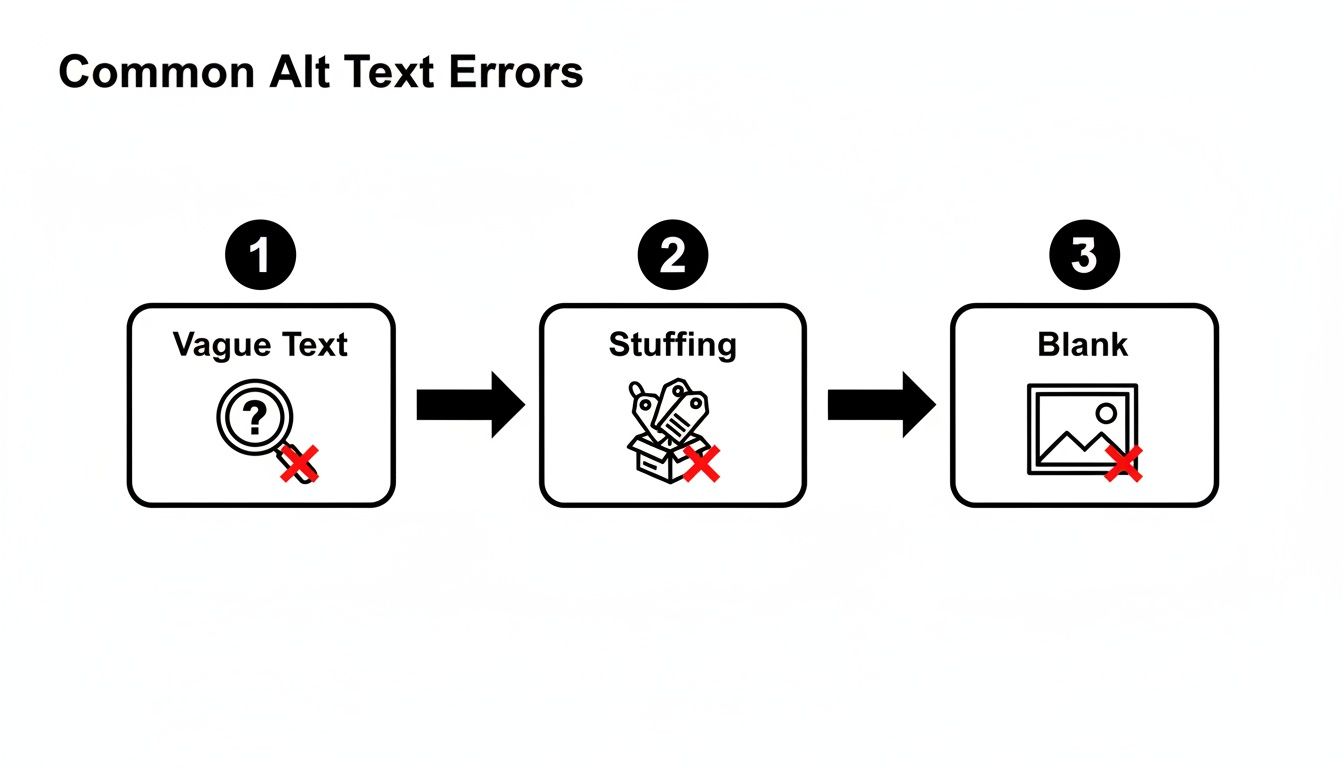
It's a great visual reminder of how easily small mistakes can undermine all your hard work, making a systematic audit absolutely essential.
A Practical Workflow for Optimization
So, what does this look like in the real world? This combination of tools creates a powerful workflow that agencies in competitive markets use to manage huge client sites every day. The reality is, even in 2026, AI can't fully replace a human-led strategy.
Audits run by firms like Website Services-Kansas City often reveal that over 80% of websites have missing alt text on their most important pages. Pairing AI's speed with human oversight slashes the workload while ensuring you get high-quality, effective results. By adopting a scalable audit and optimization process, you can transform your site's images from passive page elements into active assets that drive traffic and improve user experience.
Got the basics down? Perfect. Even with the best guidelines, a few common questions always pop up when you start getting into the nitty-gritty of alt text. Let's clear up some of the most frequent ones I hear.
Getting these details right is what separates a site that’s just “done” from one that’s truly optimized.
Is Alt Text Necessary for Every Single Image?
Nope, and this is a big one. For images that are purely for decoration—think stylistic borders, abstract background patterns, or divider lines—you should actually use an empty alt attribute: alt="".
This little bit of code is a signal for screen readers to simply skip over the image. It prevents what’s known as “auditory clutter,” creating a much cleaner and more direct experience for anyone using assistive tech. But if an image conveys any information at all, descriptive alt text is non-negotiable.
How Long Should Alt Text Be?
The sweet spot is right around 125 characters or less. Why so specific? Most screen readers simply stop reading after that point, so keeping your descriptions concise ensures the full message actually gets delivered.
The goal is to be descriptive but direct. Get to the point quickly and put the most important information first, without sacrificing clarity.
Remember, the main goal here is clear communication. Be as descriptive as you need to be within that 125-character guideline to accurately explain the image's content and function.
Does Alt Text Affect My Regular Google Ranking?
Yes, it does, though maybe not in the way you think. While alt text is a huge ranking factor for Google Images, its impact on regular web search is more about providing context.
Accurate alt text helps search engines like Google get a much deeper understanding of your page's overall topic. This strengthens your page's topical authority, which can definitely support your rankings for related keywords in the main search results. Think of it as one more signal telling Google your content is relevant and comprehensive.
Can I Use the Same Alt Text for Multiple Images?
You should only ever reuse alt text if the images are absolutely identical and are just being used in different places on your site.
If the images are different in any way—even slightly—they need unique alt text that accurately describes each one. Slapping generic, duplicated alt text on different visuals is not only a poor user experience but also a massive missed SEO opportunity. Every single image is a chance to add more specific, valuable context to your page. Don't waste it.
Ready to stop guessing and start ranking? The expert team at Website Services-Kansas City offers comprehensive SEO audits and WordPress development to ensure every part of your site, including your images, is perfectly optimized. Visit us at https://websiteservices.io to see how we can help you grow.